USB-C Is a Mess. This Guide Will Finally Make It Make Sense.
You've got the right port but the wrong cable. Again. This guide untangles the chaos of USB-C specs so you can finally buy the right one and get the speed you paid for.

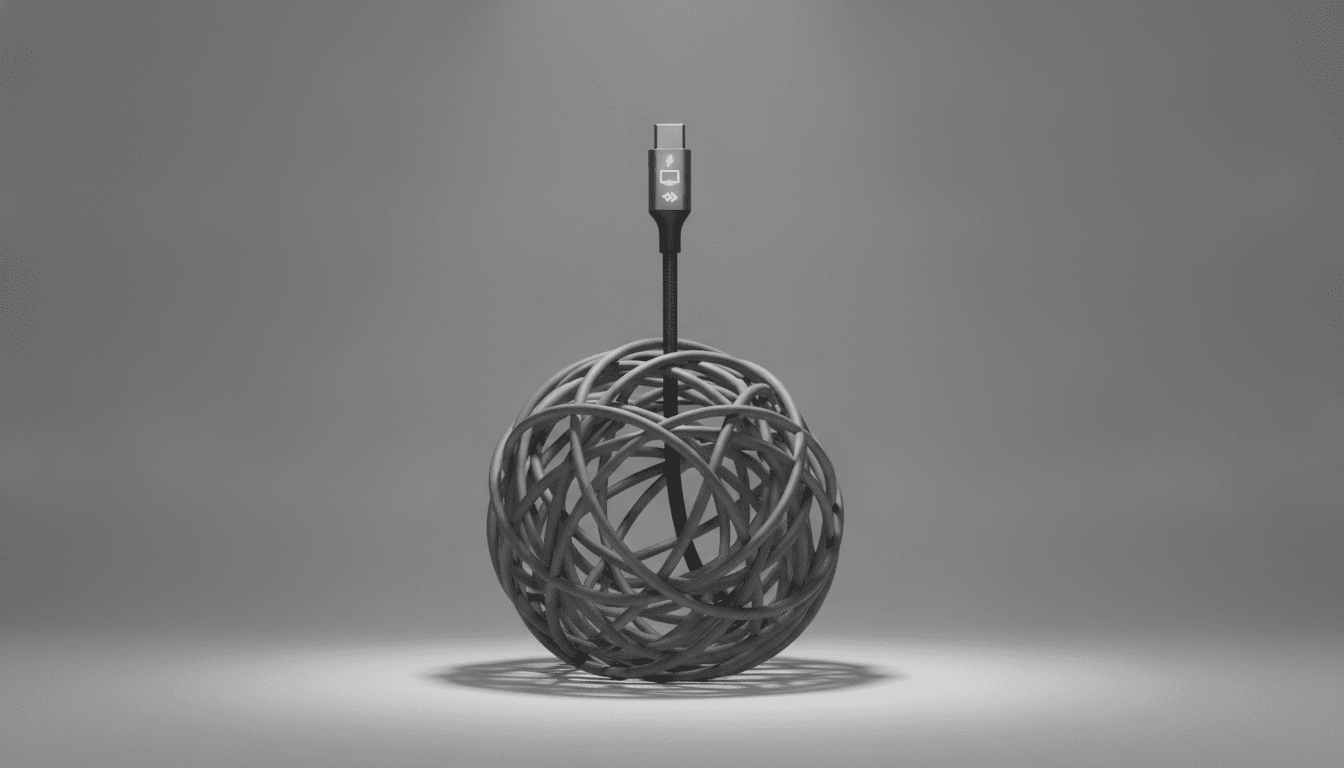
The Promise and Peril of a Universal Connector
One cable to rule them all. That was the promise. The small, reversible USB-C connector was supposed to clear out that drawer full of junk. Instead? It created a whole new kind of chaos. You plug your laptop into a friend's USB-C charger and... nothing. Or you use your phone's cable to connect an external drive, only to watch the file transfer crawl for hours. Here's where it all goes wrong: the USB-C shape is just a physical plug. That's it. It says almost nothing about what the cable or port can actually do. This is the definitive USB-C explained guide to cut through the noise.
Think of the connector as a keyhole. A key that fits the shape doesn't mean it will unlock the door. The real work—charging, data, video—is handled by the technology packed inside the cable and the devices. And those capabilities vary wildly. We're talking everything from speeds barely fit for a mouse to performance that can drive multiple 4K monitors. Not all USB-C is created equal. Far from it.
USB-C vs. USB-A: More Than Just a Shape
It helps to remember what we left behind. The old rectangular USB-A port. The USB-A vs. USB-A debate is over; the old connector is big, clumsy, and can't be plugged in upside down (though we all tried). It was also technologically stuck in the past. USB-A maxes out around 15 watts of power and data speeds of 5 to 10 Gigabits per second (Gbps). USB-C obliterates those limits. The modern standard can pump out up to 240 watts of juice and transfer data at a blistering 40 Gbps, sometimes even more. That colossal performance leap is why one single USB-C port can charge a beastly laptop, download a 4K movie in seconds, and run an external monitor—all at the same time. Try doing that with USB-A. You can't.
The Three Pillars of USB-C: Power, Data, and Video
To make sense of any USB-C cable or charger, you have to check its specs in three different areas. A cable might be a champion in one category but a complete dud in another. Here’s the breakdown.
1. Power Delivery: Understanding USB-C Charging Speeds Explained
This is the big one. The secret sauce behind fast charging is a protocol called USB Power Delivery (PD). When you connect two devices, they have a lightning-fast digital handshake. The charger says what it can offer (like 5V/3A, 9V/3A, or 20V/5A), and your device requests the fastest rate it can safely handle. And forget that myth about a powerful charger frying your phone. It's bogus. A certified 100W PD charger will safely power up your 25W phone because your phone—not the charger—is calling the shots.
How to Read the Watts:
- Up to 60W: This is your basic, often unmarked, USB-C cable. It’s enough for phones, tablets, and smaller laptops.
- 100W: Now we're talking. This is the sweet spot for powerful laptops like a 15-inch MacBook Pro. But you need a cable explicitly marked as 100W. If you use a 60W cable with a 100W charger, you'll only get 60W of power. The cable is the bottleneck.
- 240W (EPR): The new king. Dubbed Extended Power Range (EPR), this standard pushes up to 240W for the most demanding gaming laptops and mobile workstations. You absolutely need a specialized 240W-rated cable for this to work.
For most people, a 65W charger is the perfect balance of power and portability. It can handle your phone, your tablet, and your work laptop just fine. If you want one brick to do it all, check out our guide to the best portable chargers of 2026.
2. Data Transfer Speeds: From a Crawl to a Blur
Next up: data speed. Just because a cable can charge your laptop at lightning speed doesn't mean it can transfer files quickly. In a deeply frustrating move, many companies bundle powerful chargers with what are essentially slow USB 2.0 cables. This is a crucial lesson in any USB-C cable compatibility guide.
Decoding the Gigabits:
- USB 2.0 (480 Mbps): Painfully slow. At a max of 480 Megabits per second, this is a throwback. If a USB-C cable has no speed markings on it, assume the worst. Assume it's this.
- USB 3.2 Gen 1 (5 Gbps): Ten times faster. Finally, a respectable baseline for external hard drives and everyday peripherals.
- USB 3.2 Gen 2 (10 Gbps): A serious jump in performance, great for high-speed SSDs or a 4K webcam that needs a lot of bandwidth.
- USB 3.2 Gen 2x2 (20 Gbps): This one's less common, using two 10 Gbps lanes to hit a combined 20 Gbps.
- USB4 and Thunderbolt 4 (40 Gbps): The absolute top tier. At 40 Gigabits per second, these beasts handle multi-monitor setups, pro video workflows, and massive storage arrays without breaking a sweat. Thunderbolt, an Intel protocol using the USB-C connector, guarantees this elite level of performance.
3. Video Output: The 'Alt Mode' Secret
Ever plug your laptop into a monitor with a random USB-C cable only to be greeted with a 'No Signal' message? Infuriating. That's because video isn't a given. It's an extra feature. It needs something called DisplayPort Alternate Mode (DP Alt Mode), which lets a USB-C cable carry a pure video signal. Cheaper cables—especially those pokey USB 2.0 charging cables—don't have the internal wiring for it. Thunderbolt 3 and 4 cables, however, are required to support video, which makes them a reliable (if pricey) choice for connecting displays and building a clean setup, a topic we cover in our guide to the best home office tech.
How to Choose a USB-C Cable: A Practical Guide
So, how do you stop buying the wrong cable? Simple. Ignore the shape of the plug and start reading the labels. The USB Implementers Forum (USB-IF), the group in charge of the standard, has created logos to tell you a cable's capabilities at a glance.
A Shopper's Checklist:
- Look for Logos. On the cable itself. On the box. Certified cables will clearly state their data speed (10Gbps, 40Gbps) and power rating (60W, 100W, 240W). A lightning bolt icon means it's a Thunderbolt cable—the one that does everything well.
- No Logo? No Go. If a cable is blank, with no markings at all, it's almost certainly a bottom-of-the-barrel USB 2.0 cable that maxes out at 60W. Fine for your phone. Terrible for your new SSD or monitor. For serious hardware, like what you find on the best developer laptops, you need a cable that's up to the job.
- Match the Watts. Look at the power brick that came with your laptop. If it's a 96W brick, you need a cable rated for at least 100W to get that full speed. Anything less becomes a bottleneck.
- Know the E-Marker Chip. Any USB-C cable that handles more than 60W of power or data speeds faster than USB 2.0 needs a tiny chip inside called an E-Marker. This chip is crucial—it tells your devices what the cable is capable of. Without it, your powerful gear will default to a much slower, safer speed to protect itself.
The universal dream of USB-C isn't dead, but it is complicated. It demands a smarter consumer. By understanding the connector is just a shape and that the real specs are printed right there on the cable and the box, you can end the frustration. You'll stop guessing. You'll start matching the cable to your needs, getting the speed and power you actually paid for.
Related Articles



This article was produced with AI assistance under human direction, and reviewed and fact-checked by a named editor before publication. How we work.
Frequently asked questions
- Are all USB-C cables the same?
- No, they are not. While they share the same physical connector, USB-C cables vary dramatically in their capabilities. They can have different data transfer speeds (from 480 Mbps to 40 Gbps), support different charging wattages (from 60W up to 240W), and may or may not support video output. Always check the logos and specifications on the packaging or cable itself to ensure it meets your needs.
- Can I use a 100W charger for my phone?
- Yes, you can safely use a higher-wattage charger like a 100W one with a lower-power device like a smartphone. The technology, called USB Power Delivery (PD), allows the device and charger to communicate. Your phone will only draw the amount of power it's designed to handle (e.g., 25W), and the charger will not force more power into it. Your device is in control of the charging process.
- How do I know if my USB-C cable is fast?
- Look for markings on the cable's connector or on the original packaging. Fast data cables are often labeled with their speed, such as "10Gbps" or "40Gbps." A lightning bolt symbol indicates a Thunderbolt cable, which supports the highest speeds (40Gbps). If a cable has no markings, it is most likely a slow USB 2.0 cable (480 Mbps) intended primarily for basic charging.
- What's the difference between USB-C and Thunderbolt 4?
- Thunderbolt 4 is a specific technology protocol developed by Intel that uses the physical USB-C connector. Think of USB-C as the road and Thunderbolt as a high-performance car. While some USB-C ports are basic, a port or cable certified for Thunderbolt 4 guarantees a high set of features, including 40Gbps data transfer speeds, support for multiple 4K displays, and high-power delivery.
- Why won't my USB-C cable connect my laptop to a monitor?
- For a USB-C cable to transmit video to a monitor, it must support a feature called DisplayPort Alternate Mode (DP Alt Mode). Many basic USB-C cables, especially those designed only for charging, lack the internal wiring for video signals. To connect to a display, you need a cable that explicitly states it supports video, DisplayPort, or is a Thunderbolt-certified cable.
Sources & further reading
Sources
- anker.com — anker.com
- lenovo.com — lenovo.com
- pbs.org — pbs.org
- bgr.com — bgr.com
- howtogeek.com — howtogeek.com
- kensington.com — kensington.com